
Upgrading Your Login Strategy: Move From a PIN to a Password Sign-In

Upgrading Your Login Strategy: Move From a PIN to a Password Sign-In
Windows 11 encourages you to set a PIN to log in, but there are many different options you can use. So why is it so difficult to find the password option?
Let’s take a look at how you can change the Windows 11 login method from a PIN to a password.
Why Do I Have to Log In With a PIN in Windows 11?
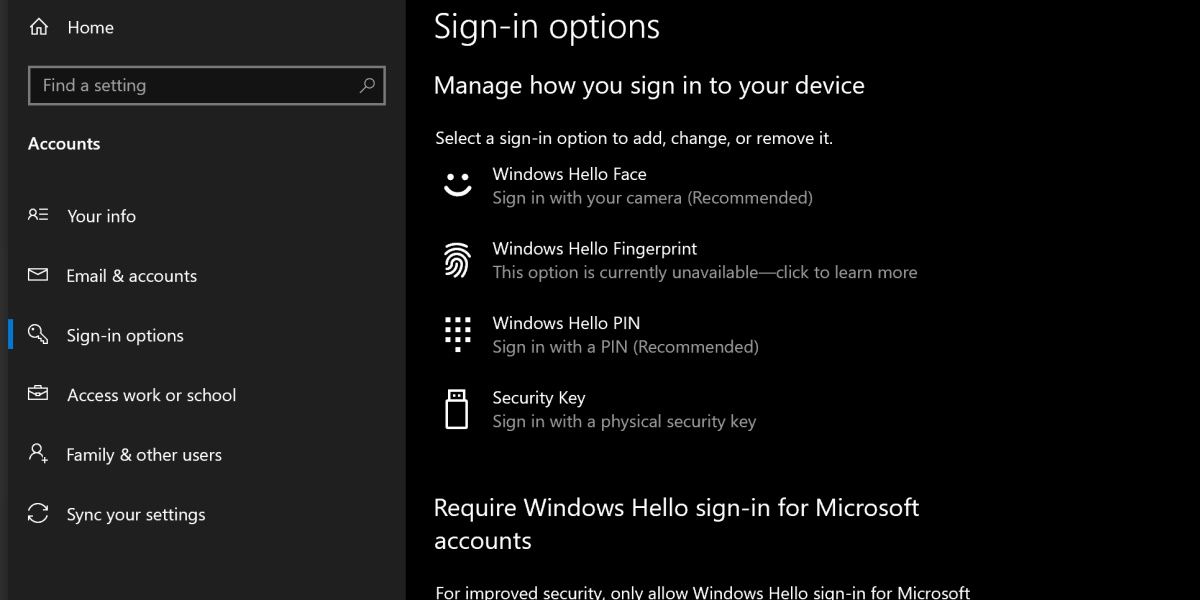
Security is a huge focus for Windows 11, and Microsoft uses a system called Windows Hello to further enforce this security.
Windows Hello is primarily about providing biometric login methods, such as scanning your face, your fingerprint, or your retina, that are unique to that specific device.
While it’s nice that you can use these comparatively advanced login methods, many users are confused when they’re unable to find the option to simply use a password.
How to Enable a Password Log-In With Windows 11
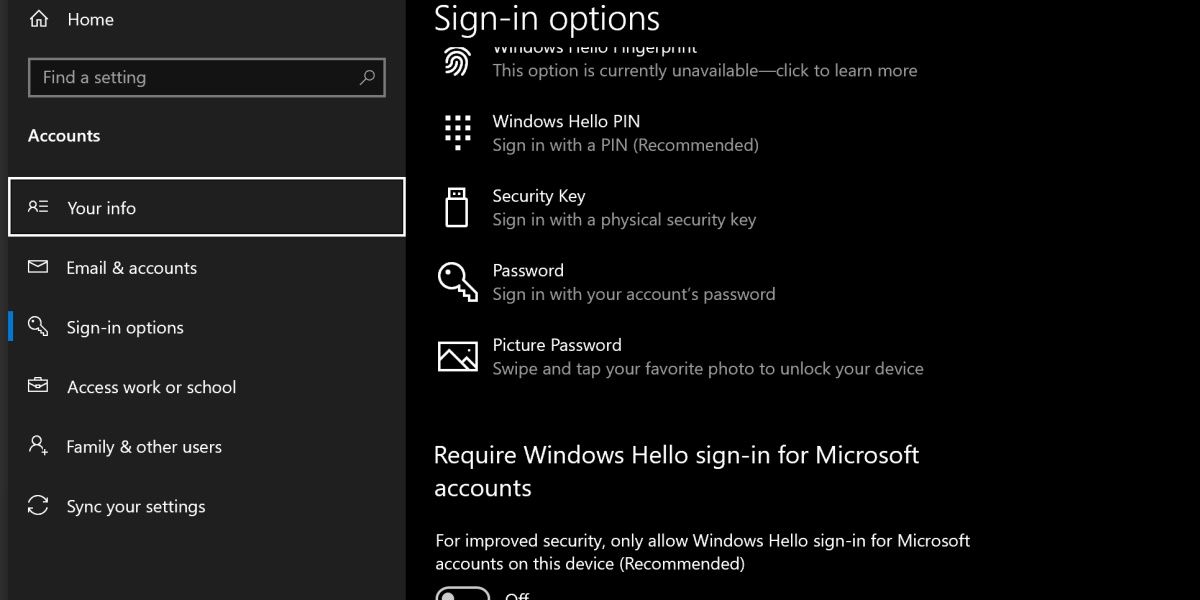
The reason why it’s tricky to change to a password login is because of Windows Hello. When it’s enabled, you’ll be unable to use traditional login methods.
To enable a password login, open your Start menu and search Sign-in Options. Open this settings app. You should see the heading Require Windows Hello sign-in for Microsoft accounts. Switch this option to off, and reopen the sign-in options settings.
You’ll now have a few additional options, one of them being to use your Microsoft account password. Click on this and hit Change to switch over to it.
The Benefits of Using a PIN on Windows
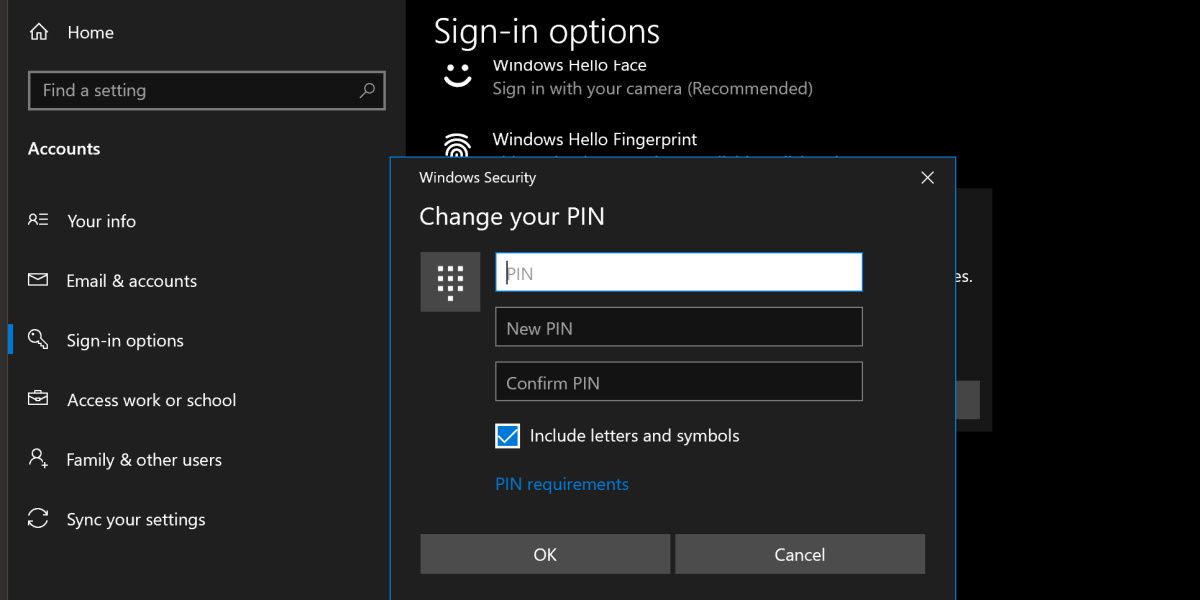
Before you consider changing back to the password method, consider the benefits of a PIN. If you switch to using your Microsoft password, you’ll be using the same password that you might use on other devices, which means one password leak will expose all of your devices.
Additionally, it’s worth knowing that you can include letters in your PIN. You simply need to enable Include letters and symbols option when you’re changing your PIN. Once turned on, you can set a PIN that works similarly to a password without needing to use your Microsoft account.
Check out our guide on whether face, iris, fingerprint, password, or PIN logins are more secure for more information.
The Old Windows Login Methods Still Work
While there might be little difference between the new PIN system and the old password system, both are included and supported in modern versions of Windows. While the traditional password method is a little trickier to enable, it’s there if you need it.
Let’s take a look at how you can change the Windows 11 login method from a PIN to a password.
Also read:
- [New] Glide and Glory Short Track Highlights From '22
- [New] In 2024, The Evolution of HD Tech - A Look at HP Envy 27
- [Updated] Breaking Boundaries Coordinated Video Watch Across Channels for 2024
- [Updated] In 2024, The Ultimate Checklist Seamless Conversion of Phone Photos to Snapchat
- Ease of VirtualBox Installation Hinges on Prerequisites
- Fixing Common Network Issues in Windows 11 - A Step-by-Step Guide
- How to Quickly Fix Bluetooth Not Working on Vivo Y27s | Dr.fone
- IPhone's Alphabetical Album Setup and Its Integration with iCloud Services for 2024
- LuminaryData Restoration
- Repairing Non-Operational Windows Alt Codes (47 Characters)
- Reviving a Disconnected Printer in the OS Domain
- Solving Ownership Challenges with Configurations Restricted by Your Org
- Tackling the Oversized Pagefile.sys Dilemma: A Comprehensive Guide
- The Ultimate Alternative Review to ShareX for 2024
- Win11 ClearView: Resolving Fuzzy Displays
- Title: Upgrading Your Login Strategy: Move From a PIN to a Password Sign-In
- Author: David
- Created at : 2024-12-04 17:54:15
- Updated at : 2024-12-07 06:18:56
- Link: https://win11.techidaily.com/upgrading-your-login-strategy-move-from-a-pin-to-a-password-sign-in/
- License: This work is licensed under CC BY-NC-SA 4.0.