
Strategies for Modifying Login Failure Count: Windows 11 Security Update

Strategies for Modifying Login Failure Count: Windows 11 Security Update
Enter the wrong local account password too many times and Windows could lock you out. The system also counts how many failed attempts you make when attempting to sign on to the machine.
Exceed this threshold and you will need this counter to be reset, which you can do by waiting a set amount of time. Here’s how to change the time you must wait in order for the counter to be automatically reset.
Disclaimer: This post includes affiliate links
If you click on a link and make a purchase, I may receive a commission at no extra cost to you.
Reset the Windows Account Lockout Counter in Windows via Local Security Policy
This method should be your preferred choice if the system is running the Pro, Enterprise, or Education edition of Windows 10 or 11.
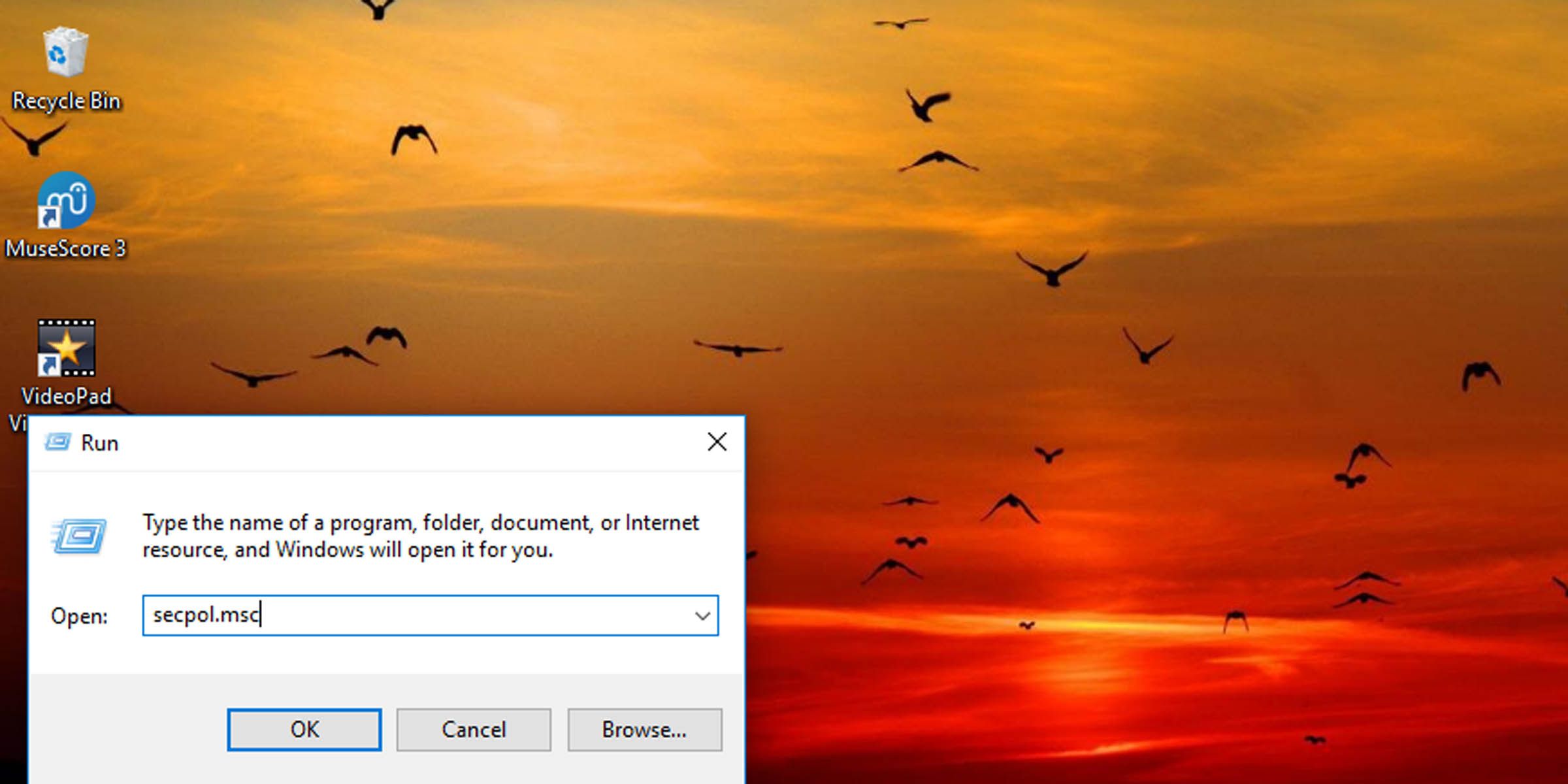
- Press the Windows key + R to open the Run dialogue.
- In the text field, type “secpol.msc” and hit Enter.

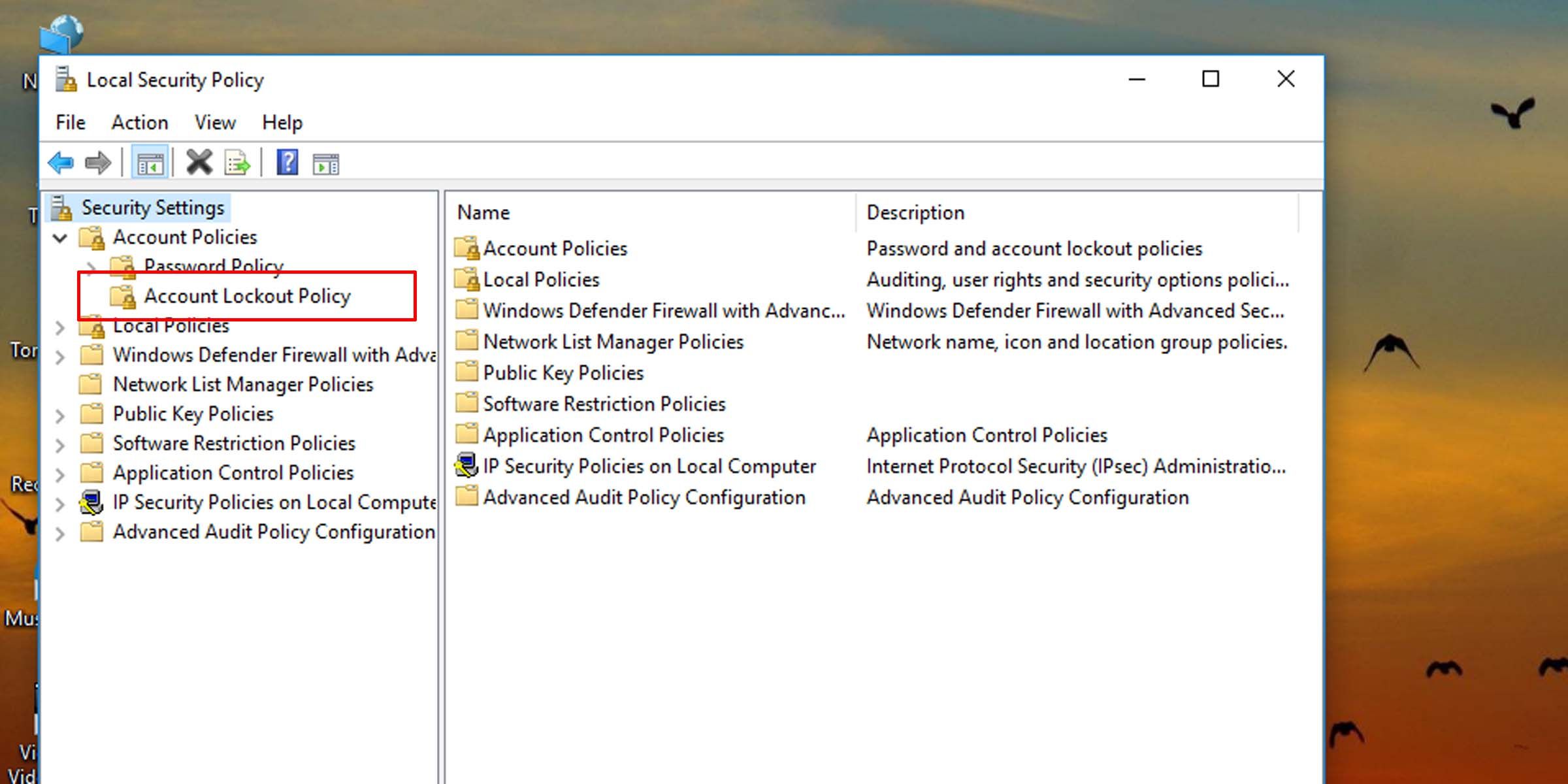
- On the left pane, navigate to Account Lockout Policy under the Account Policies folder.
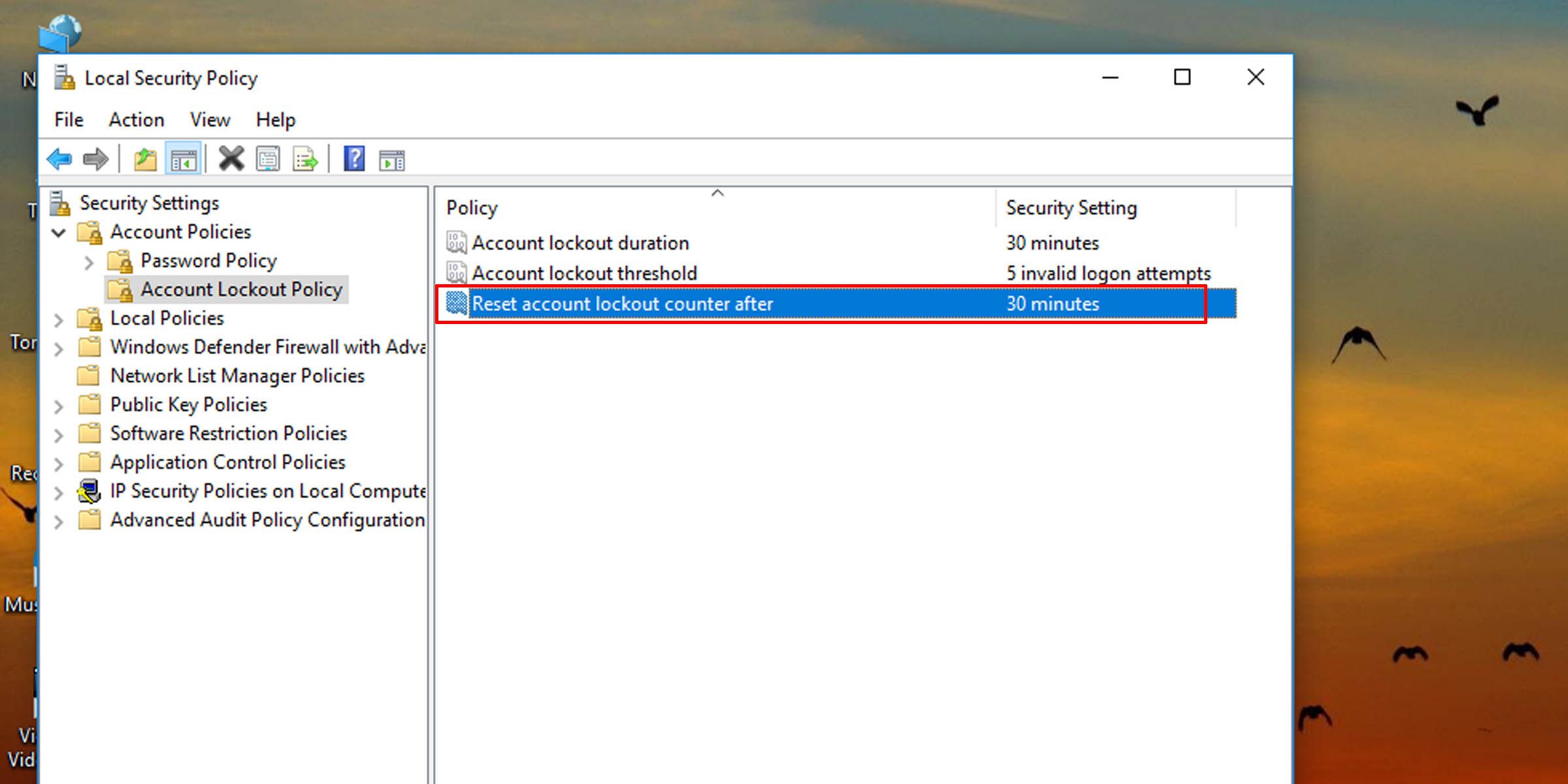
- On the right pane, double-click on the Reset account lockout counter after option.
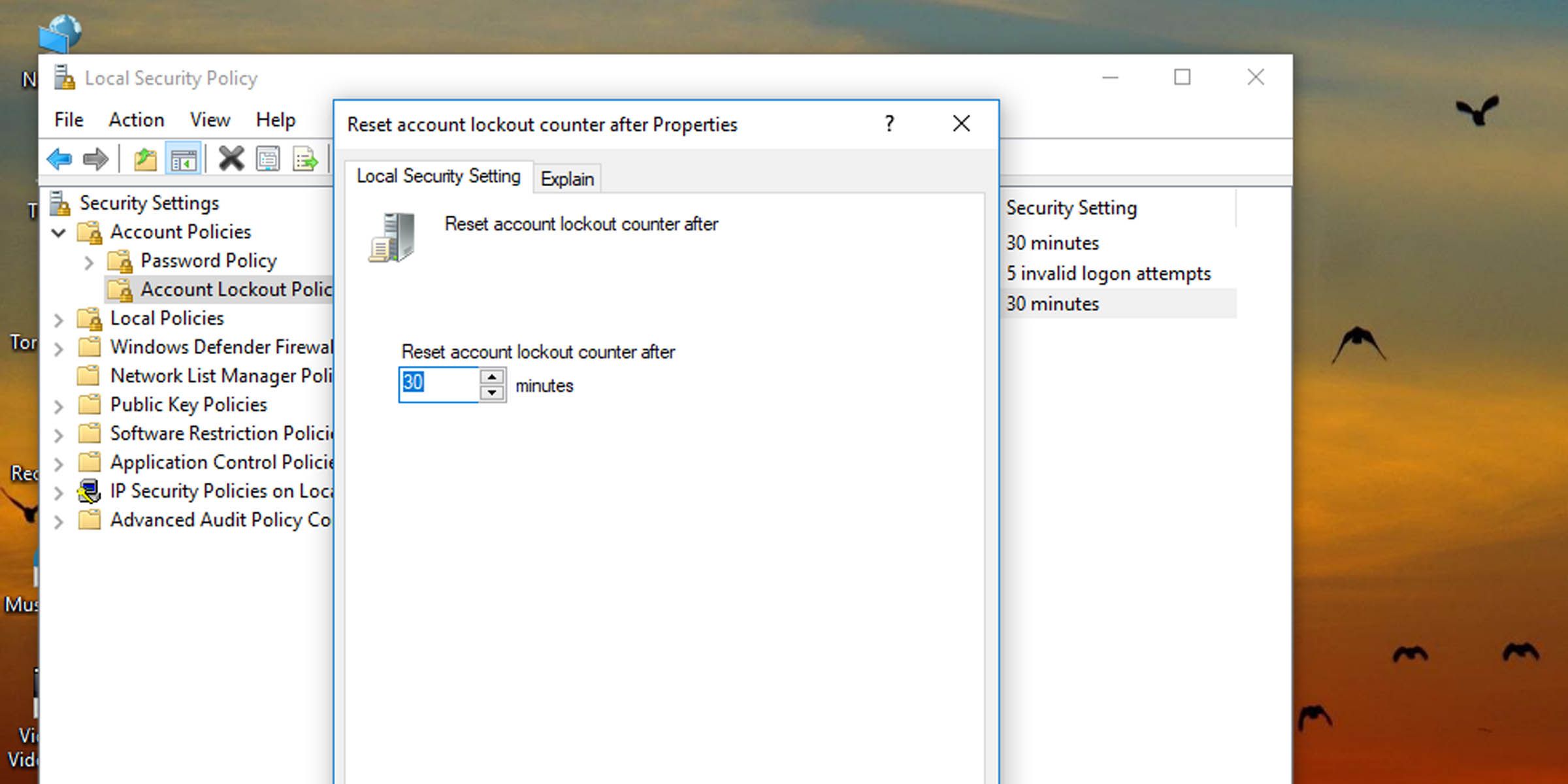
- Choose a number between one and 99,999, and hit OK to change how long the system will require to automatically reset any failed logon attempts.
How to Change Account Lockout Counter Reset Time via Command Prompt
If the system you’re working with isn’t running the Pro, Enterprise, or Education edition of Windows 10 or 11, you’ll have to change how long before the account lockout counter is reset via the command prompt.
- Open command prompt as administrator, also called the elevated command prompt , or Windows PowerShell.
- Type the following command into the console and hit Enter:
net accounts - This will pull up information on how long a user has to wait before their account lockout counter is reset. It will be under the heading Lockout observation window.
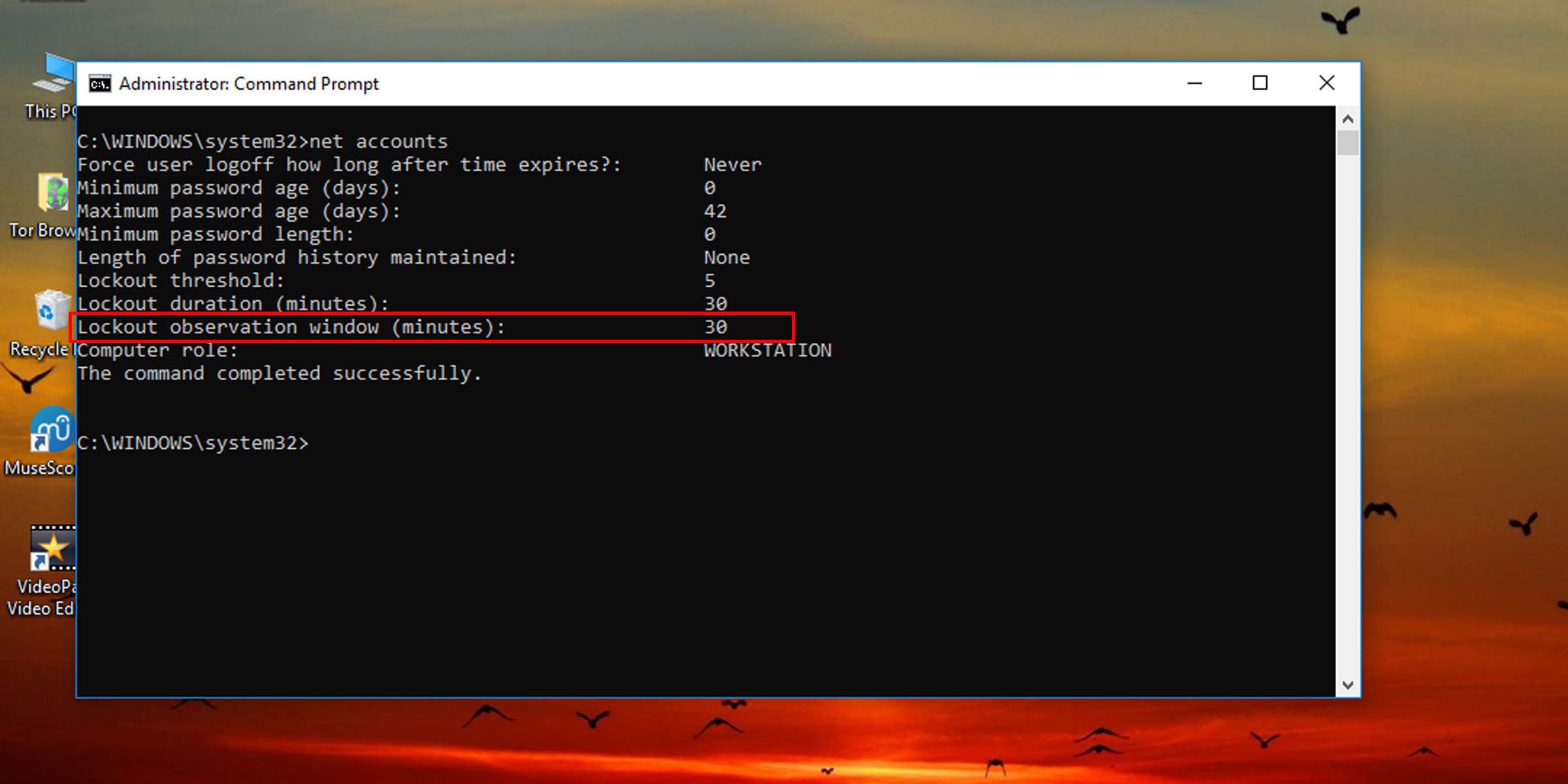
- To change the account lockout counter reset duration on Windows 10 and 11, type the following command into the console and hit Enter:
net accounts /lockoutwindow:60 - Replace the number “60” in the command with any other number from one to 99,999 to set how many minutes a user will have to wait before their failed logon attempts are reset.
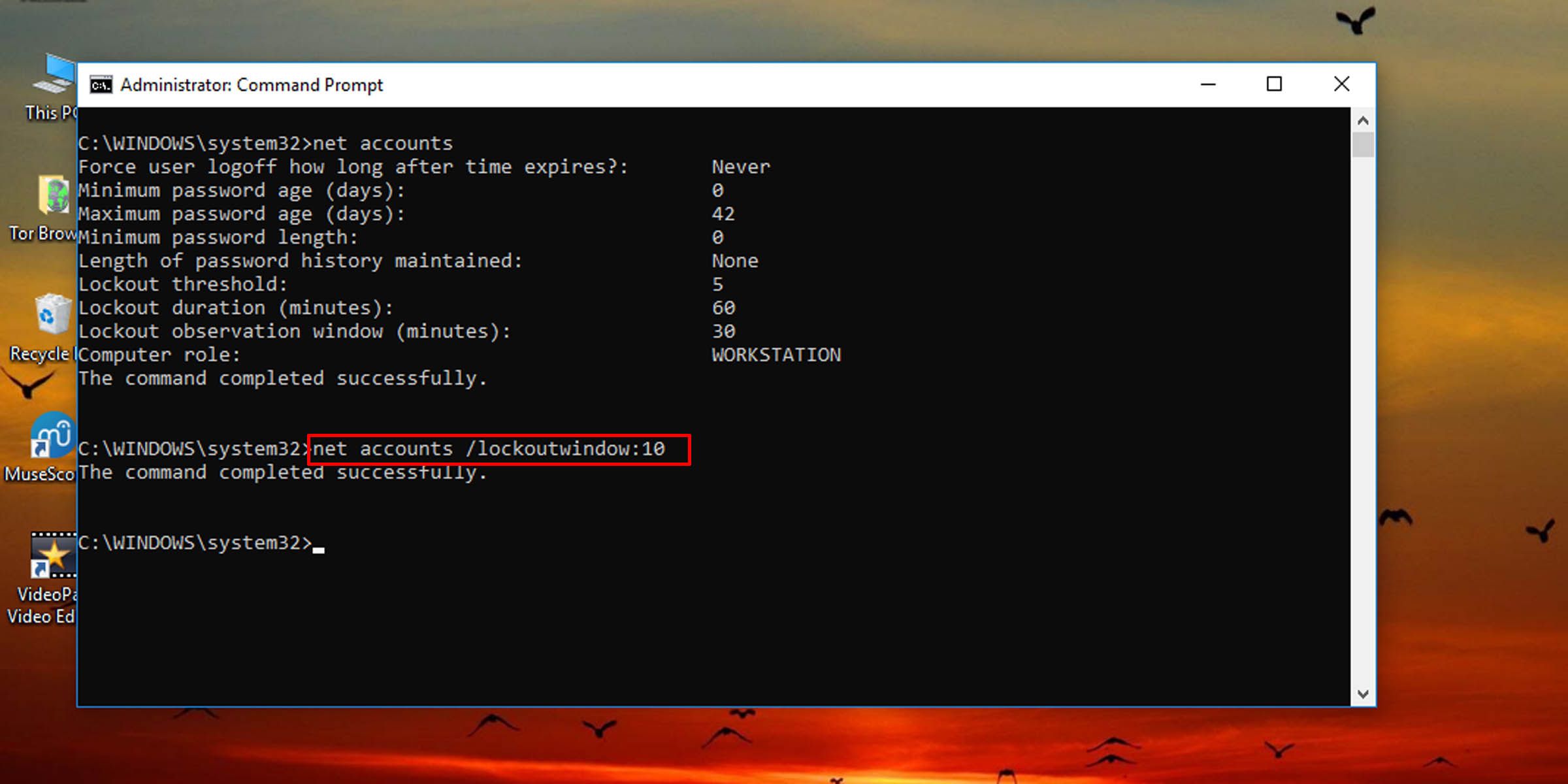
A related setting, the account lock-out duration , must equal or exceed the time for the system to automatically reset the number of failed login attempts. If you want, you can change the account lock-out duration on Windows to something that suits you best.
You can also limit the number of failed logon attempts on Windows with a similar setting change.
Control How Long Before the Incorrect Logon Counter Is Reset
With this setting, you control how long before the counter that keeps track of incorrect logon attempts is reset. Use it in conjunction with the lockout duration option account policy to make things more convenient for local users.
Exceed this threshold and you will need this counter to be reset, which you can do by waiting a set amount of time. Here’s how to change the time you must wait in order for the counter to be automatically reset.
Also read:
- [New] Maximize Your Impact Strategic Approaches to Facebook Bios
- [Updated] Essential Image Collections The Best MacBook Wallpaper Packs
- Comprehensive FB Messenger Recordings Explained
- Efficient Methods to Snap Windows' Security Messages
- Expert Tips for Rectifying Unresponsive USB Ports on Your Notebook Computer
- Explore the Powerful Functions of Garmin Venu: The Essential Companion for Round-the-Clock Health Monitoring
- Haley BA., Et Al (N.d.). Glyphosate Occurrence and Potential Impacts on Surface Water Ecosystems: A Review. Retrieved From https://www.usgs.gov/special-topic/water-science-school/science/glyphosate-occurrence-and-potential-impacts-surface
- Prank Your Friends! Easy Ways to Fake and Share Google Maps Location On Infinix GT 10 Pro | Dr.fone
- Re-Establishing Enter Input on Windows Devices
- Seamless Admin-Level Terminal on Demand
- Steps to Eliminate Freezing Issues in Microsoft Teams Win11/Win10
- Swiftly Solve Windows 11/10 We Encountered an Error for Oculus
- Verify Your Machine's Suitability for Windows 11
- Title: Strategies for Modifying Login Failure Count: Windows 11 Security Update
- Author: David
- Created at : 2024-11-01 21:13:45
- Updated at : 2024-11-07 23:41:04
- Link: https://win11.techidaily.com/strategies-for-modifying-login-failure-count-windows-11-security-update/
- License: This work is licensed under CC BY-NC-SA 4.0.