
Overcoming the Hurdle of Nonstop Teams Sign-Ins on PC

Overcoming the Hurdle of Nonstop Teams Sign-Ins on PC
Microsoft Teams is designed as one of the best messaging programs to help you and your team. However, it may run into the occasional glitch and keep asking you to sign in.
If this has happened to you, here are a few troubleshooting tips to help you fix the issue.
1. Update Microsoft Teams
Microsoft constantly releases new app updates to add more features and fix any bugs. If you’re running an old Teams version, you should install any available updates to stop it from asking you to sign in.
Launch the Microsoft Teams app and open the three-dot menu next to your profile icon. Then, head to Settings and click About Teams. Microsoft Teams will check for any available updates and install them if available.
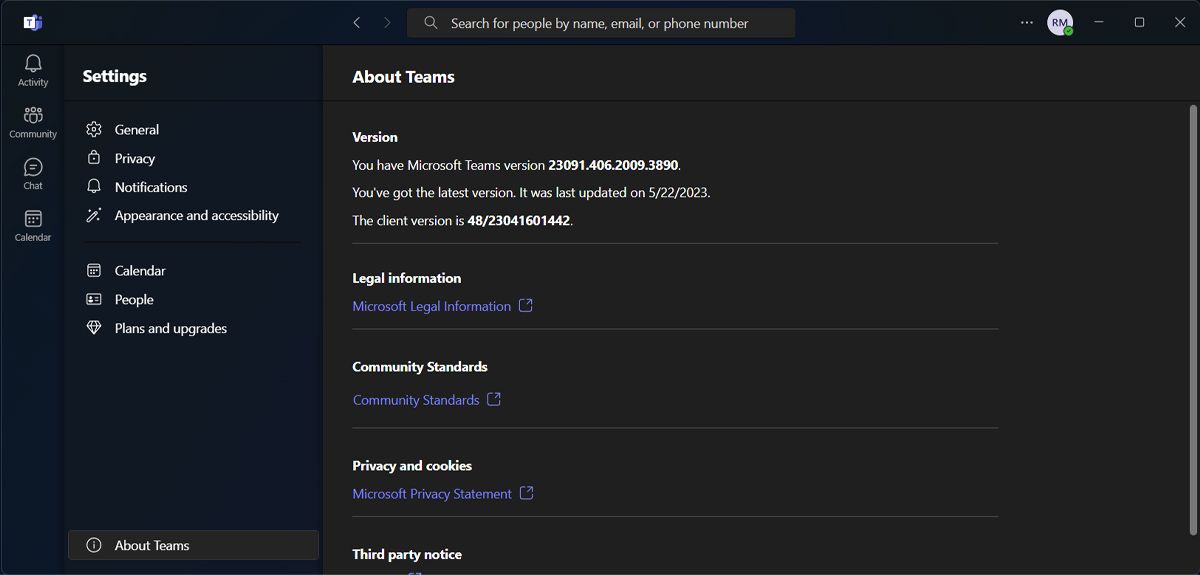
Alternatively, you can update Windows apps through Microsoft Store.
2. Use Microsoft Teams Online
If updating the app didn’t stop Microsoft Teams from asking you to sign in, there’s an easy alternative for you. Use Microsoft Teams online.
Go to the Microsoft Teams website , and sign in using your credentials. This way, you’re not missing anything while you figure out how to fix the desktop app. You can even join a Microsoft Teams meeting on your smartphone .
3. Clear the Microsoft Teams Cache
Microsoft Teams stores cache to load faster and improve the overall user experience. While this may sound good, if the app collected too much cache or the cache somehow got corrupted, Teams will stop working properly.
This might include Microsoft Teams crashing , taking a lot of your system resources, or repeatedly asking you to sign in. To fix it, you should delete the Microsoft Teams cache.
- Press Win + R to bring up a Run dialog.
- Type %appdata% and click Ok.
- In the File Explorer window, head to Microsoft > Teams.
- Select all folders and permanently delete them.
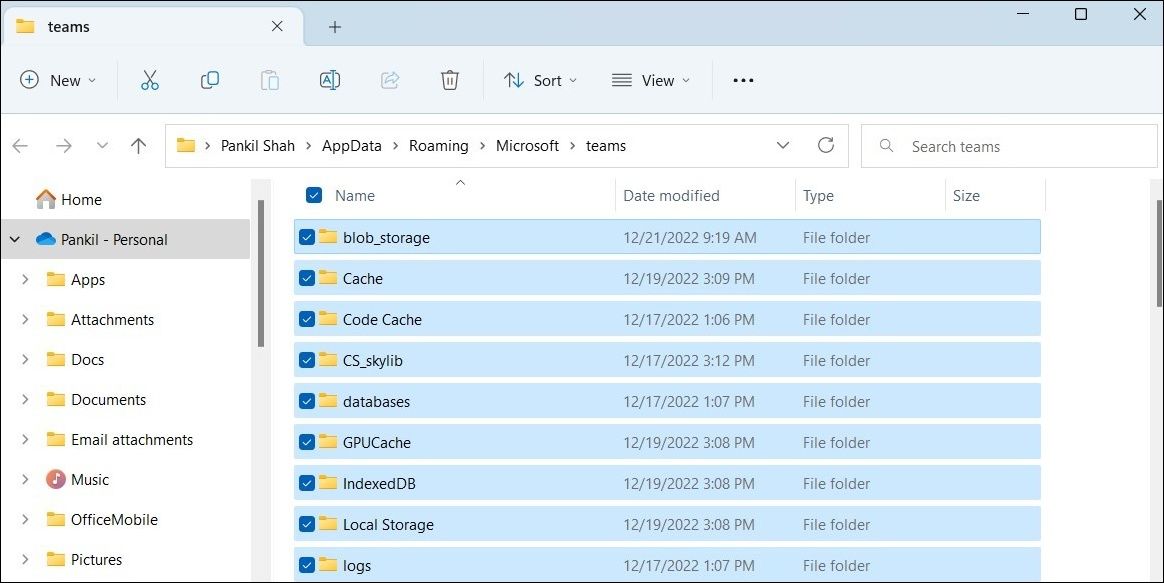
Restart Microsoft Teams and check if the issue is now solved. You may notice a decline in the app’s performance, but there’s no reason to worry. The app is now rebuilding its cache which shouldn’t take too long.
4. Remove the App’s Credentials
Windows Credential Manager is designed to make your life easier, as it stores your credentials for faster access. But if something’s wrong with how it managers Teams credentials, you might run into the sign-in issue. In this case, you should remove the app’s credentials.
- Press Windows key + R to bring up a Run dialog.
- Type control /name Microsoft.CredentialManager and press Enter.
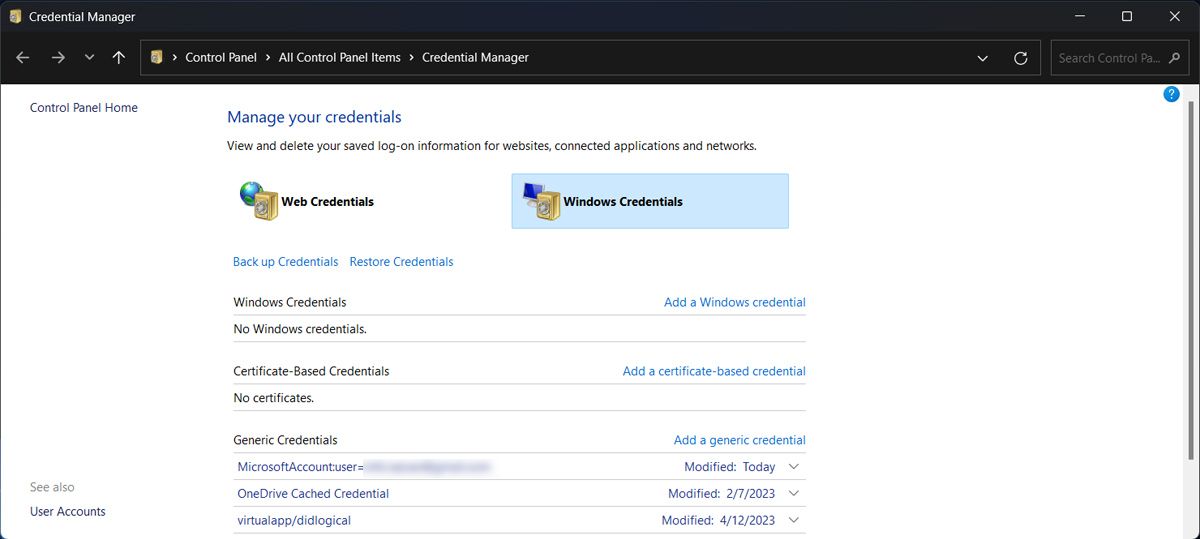
- In the Credential Manager window, select Windows Credentials.
- From Generic Credentials, click the Microsoft Teams credentials.
- Select Remove.


Key features:
• Import from any devices and cams, including GoPro and drones. All formats supported. Сurrently the only free video editor that allows users to export in a new H265/HEVC codec, something essential for those working with 4K and HD.
• Everything for hassle-free basic editing: cut, crop and merge files, add titles and favorite music
• Visual effects, advanced color correction and trendy Instagram-like filters
• All multimedia processing done from one app: video editing capabilities reinforced by a video converter, a screen capture, a video capture, a disc burner and a YouTube uploader
• Non-linear editing: edit several files with simultaneously
• Easy export to social networks: special profiles for YouTube, Facebook, Vimeo, Twitter and Instagram
• High quality export – no conversion quality loss, double export speed even of HD files due to hardware acceleration
• Stabilization tool will turn shaky or jittery footage into a more stable video automatically.
• Essential toolset for professional video editing: blending modes, Mask tool, advanced multiple-color Chroma Key
5. Try Some Generic Fixes for Windows Apps
There are some generic fixes for all Windows apps that may also fix Microsoft Teams when it pesters you to sign in. These include:
Restart the App
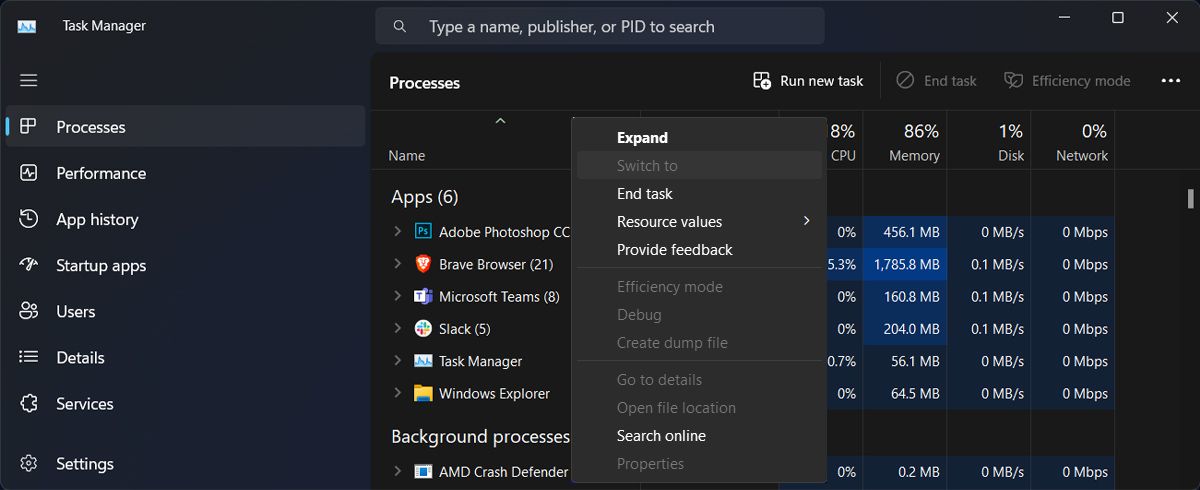
Microsoft Teams could ask you to sign in due to a temporary app glitch. In this case, the first thing you should try is to restart the app. However, simply closing Microsoft Teams is not enough as the Teams’ background processes will still run.
To fully restart the app, launch Task Manager by pressing Ctrl + Shift + Esc. Then, right-click Microsoft Teams and select End Task.

Repair Microsoft Teams
There’s one advantage you can use when it comes to apps developed by Microsoft. You can have Windows repair the app for you whenever you run into a problem.
To do this, check out how to repair apps and programs on Windows . Once done, Windows will scan the app for any issues and suggests fixes for you to try.
Reinstall Microsoft Teams
If Teams is still bugging you with signing in after going through the above fixes, it’s time to reinstall the app. Uninstall the app, then reinstall it through the Microsoft Store. Also, there are more free Microsoft Store apps that are worth a try .
Fix Microsoft Teams Sign-In Issue
Hopefully, one or more of the above fixes helped you stop Microsoft Teams from asking you to sign in. If you’re in a hurry, you could switch to a different device and use Microsoft Teams online.
If you have a meeting scheduled for today, make sure you keep it short and productive.
If this has happened to you, here are a few troubleshooting tips to help you fix the issue.
- Title: Overcoming the Hurdle of Nonstop Teams Sign-Ins on PC
- Author: David
- Created at : 2024-08-16 00:06:01
- Updated at : 2024-08-17 00:06:01
- Link: https://win11.techidaily.com/overcoming-the-hurdle-of-nonstop-teams-sign-ins-on-pc/
- License: This work is licensed under CC BY-NC-SA 4.0.