
How to Re-Register Microsoft Store Apps on Windows 10 & 11

How to Re-Register Microsoft Store Apps on Windows 10 & 11
You may want to re-register built-in Windows apps if the Microsoft Store apps are not working. In other instances, issues with other Windows elements like Taskbar can be resolved by re-registering the built-in Windows apps.
You can use a PowerShell cmdlet to perform this action. Here we show how you can re-register apps for individual or all accounts on Windows.
Disclaimer: This post includes affiliate links
If you click on a link and make a purchase, I may receive a commission at no extra cost to you.
How to Re-Register Microsoft Store Apps for Current Users
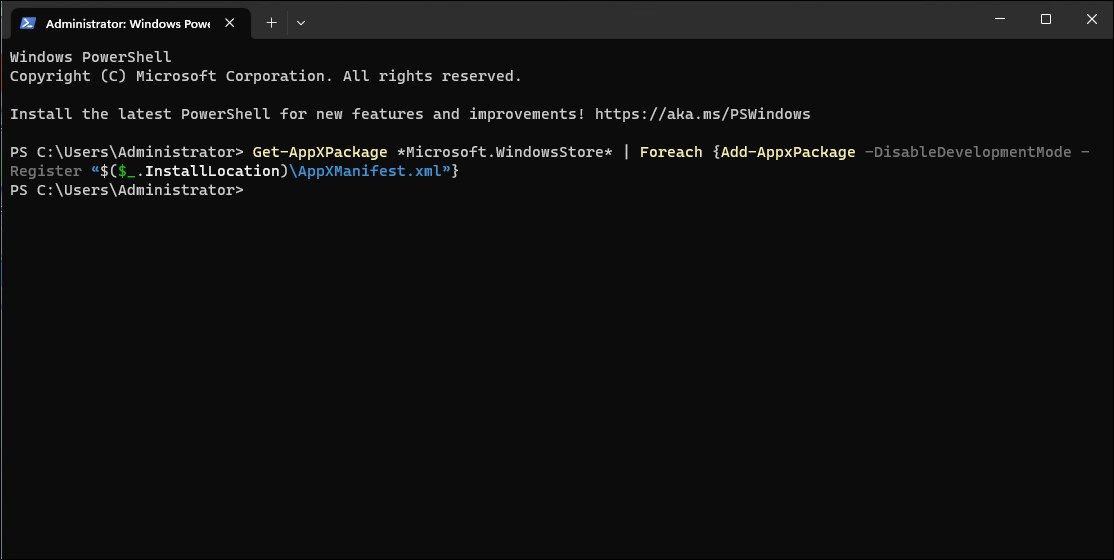
If theMicrosoft Store app issue exists with a specific user account, you don’t need to re-register the app for all the user accounts on your computer. Instead, you can re-register the app only for the current user account.
To re-register Microsoft Store apps for the current user:
- Press theWin key and type “powershell” into the Search bar.
- Right-click onWindows PowerShell and selectRun as administrator .
- In the PowerShell console, type the following command and pressEnter :
Get-AppXPackage *Microsoft.WindowsStore* | Foreach {Add-AppxPackage -DisableDevelopmentMode -Register "$($_.InstallLocation)\AppXManifest.xml"} - Wait for the command to execute and complete. You may see a blue loading graphic.
- Once done, typeexit and pressEnter to close PowerShell.
During the process, you may see some errors highlighted in red. It is due to PowerShell trying to reinstall existing apps on Windows. So, ignore the error and wait for the process to complete.

How to Re-Register Microsoft Store Apps for All Users
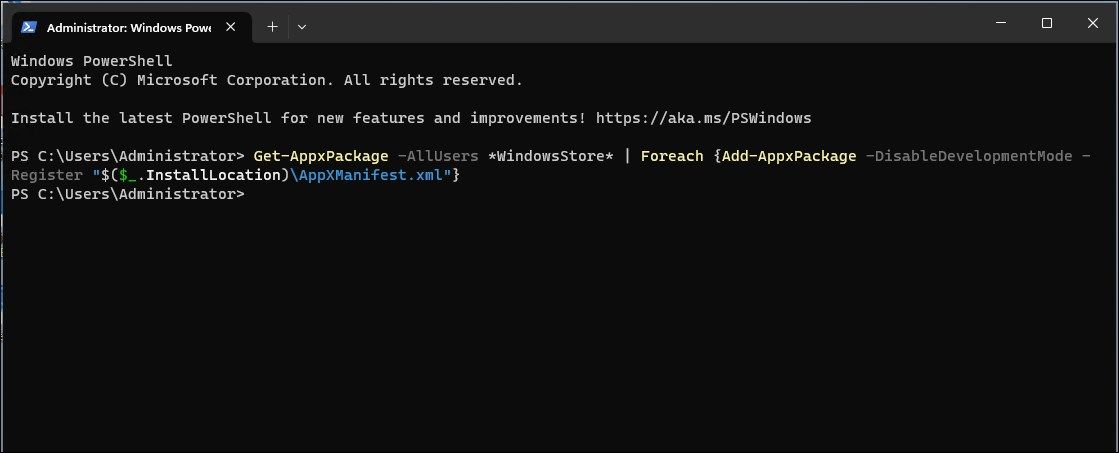
If you need to re-register the built-in Windows apps for all users, you’ll need to tweak the above PowerShell cmdlet a little to include the -AllUsers parameter. This would allow the cmdlet to search through all user accounts on the system and install and re-register the Microsoft Store apps.
- Open PowerShell as administrator .
- In the PowerShell window, type the following command and pressEnter :
Get-AppxPackage -AllUsers *WindowsStore* | Foreach {Add-AppxPackage -DisableDevelopmentMode -Register "$($_.InstallLocation)\AppXManifest.xml"} - This process may take some time to complete depending on the number of apps that require re-registering and reinstalling.
Install and Re-Register All Microsoft Store Apps on Windows 11
Re-registering Windows apps is often necessary when Microsoft Store is not working. It can also help deal with other Windows settings and apps. If the issue persists, try the built-in Windows Store Apps troubleshooter to fix common Microsoft Store app issues.
Also read:
- [New] 2024 Approved Achieve Cinematic Gaming with Advanced Steam Recordings
- [Updated] In 2024, Monthly Income for Content Creators on YouTube?
- Essential Tips for Effective Win 11 Sandbox Setup
- Exploring the Future with Linus: Insights on Artificebotics, Rust Programming, and Why Linux Is Crucial | ZDNET
- Guide to Initiating a Pure Boot in Windows 11
- How to Configure a Windows Hello Fingerprint Login on Windows 11
- In 2024, Top 6 Ways to Transfer Text Messages from Huawei P60 to Other Android Devices | Dr.fone
- Navigating Windows Terminal's Administrator Barrier
- Proper Techniques for Auditory & Visual Recordings Using the Snipping Tool in Windows 11 (Max 156)
- Resurrect Corrupted Files: Win 11'S ZIP Fix Guide
- Rootjunky APK To Bypass Google FRP Lock For Motorola Moto G Stylus (2023)
- Swiftly Stow Facebook Broadcasts for Smartphone/Desktop Users
- Taking Flight with Creativity: A Comprehensive Review of The
- The Ultimate Guide to Generating Artificn with ChatGPT's Assistance
- Title: How to Re-Register Microsoft Store Apps on Windows 10 & 11
- Author: David
- Created at : 2024-11-01 04:11:36
- Updated at : 2024-11-02 00:40:21
- Link: https://win11.techidaily.com/how-to-re-register-microsoft-store-apps-on-windows-10-and-11/
- License: This work is licensed under CC BY-NC-SA 4.0.